
General rule is that our app automatically takes all users from the parent site (where the app is installed) using SharePoint API.
There could be four reasons that you cannot see the user:
1.User should log into the SharePoint Site at least once
User Information entries are added when a user logs into a site. So users may have a fully configured user profile and may have access to a site, but until they login they won't have a complete User Information entry.
2.User doesn't have "Work Email" field set up correctly.
Users without "Work Email" field cannot receive any email notification from SharePoint so we exclude them from the list.
To resolve this issue please go to SharePoint Admin Center->Click on user profiles in the left navigation ->Click Manage User Profiles->
Search for the user who's settins you would like to modify -> Edit My Profile
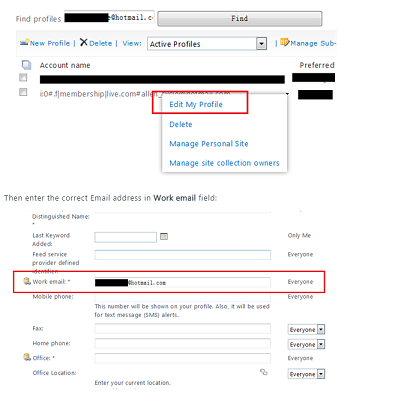
Notice: This change is not in real-time. Please allow some time (few hours) for the changes sync to your SharePoint site.
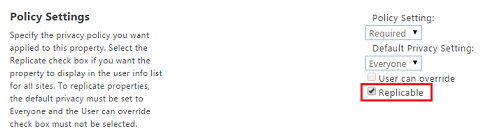
3.Property "Work Email" is not "Replicable" in policy settings
Replicable checkbox must be checked.
To resolve this issue please go to the SharePoint Admin Center->User Profiles->Manage Policies, then click edit on "Work Email" property and make sure that "Replicable" checkbox is checked
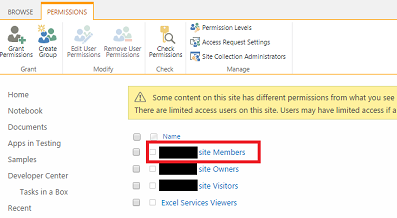
4.User doesn't have permissions to the parent site (where the app is installed)
To resolve this issue please go to the Parent Site settings->Site permissions->"Site name" Members and add selected users.
Please read the following sections, depending on the error message that you receive.
Case 1. "Everything is fine, but we had a small problem getting your license. Please go back to the SharePoint Store to get this app again and you won't be charged for it"
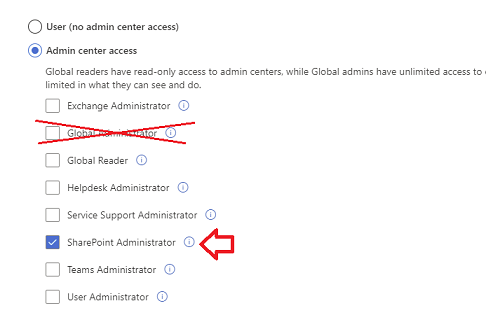
It's caused by using an account with the "Global Administrator" role (System Account) which is not allowed to install SharePoint apps.
You need to use Office account that is not a Global Administrator. Here is example article with problem resolution.
What is also worth mentioning:
1) When you don't use an account that is "Global Administrator" - the account you use to install SharePoint apps needs to have "Full Control" permission to the SharePoint Site where the app is installed. You can achieve it via membership in the Site Owners group or adding a user to "Site Collection Administrators" which is described here.
2) Sometimes it's good to try to log in again by using "incognito mode in the browser (permission levels might be "cached")
Case 2. "Sorry, you don't have permissions to add apps here."
The account you use to install SharePoint apps needs to have "Full Control" permission to the SharePoint Site where the app is installed. You can achieve it via membership in the Site Owners group or add a user to "Site Collection Administrators" (via SharePoint UI or Powershell) which is described
here.
Case 3. "You can't add this app here..."
You can add the same app only once to the same SharePoint Site. Please open SharePoint Site Contents (left menu) to check if the app is already installed and also check if the app is listed under "Recycle Bin".
Case 4. "Sorry, there was something wrong with the download. Try adding it again."
It could be language type mismatch between your SharePoint site language and app language. To solve this problem, change the language during app installation:
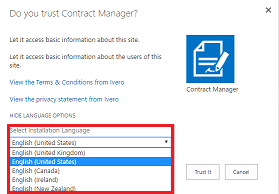
You can also check ULS logs to get more detailed error message. For example the default path log location for Sharepoint 2013:
C:\Program Files\Common Files\Microsoft Shared\Web Server Extensions\15\Logs
User list is pulled from SharePoint User Information List (built-in SharePoint feature, here is more info)
You can enter Information List and remove user manually.
To enter Information List you need to add following character string to the URL of the parent site:
/_layouts/15/people.aspx?MembershipGroupID=0
For example if you installed the app on the site:
https://ivero.SharePoint.com/sites/Intranet
final URL will looks like below:
https://ivero.SharePoint.com/sites/Intranet/_layouts/15/people.aspx?MembershipGroupID=0
Probably you are using wrong link to access the app (i.e. shortcut made from random app URL).
Please use one of below methods to create an app shortcut.
Method 1) Enter the app (first page) and copy full URL from the browser's address bar (with all parameters like SPHostUrl etc.), below is example:
https://iverodemo-c5948d2992c3d6.sharepoint.com/HelpDeskPlus/Pages/Default.aspx?SPHostUrl=https%3A%2F%2Fiverodemo%2Esharepoint....
Method 2) Enter the app (first page), copy URL from the browser's address bar and remove all characters after app name, below is example:
https://iverodemo-c5948d2992c3d6.sharepoint.com/HelpDeskPlus/Pages/Default.aspx?SPHostUrl=https%3A%2F%2Fiverodemo%2Esharepoint....
Required parameters will be automatically added by SharePoint.
To pin app to the SharePoint menu, please use steps described in question "How to pin the app to the SharePoint menu or Office 365 app launcher?" from the Product FAQ (at the bottom of product site)
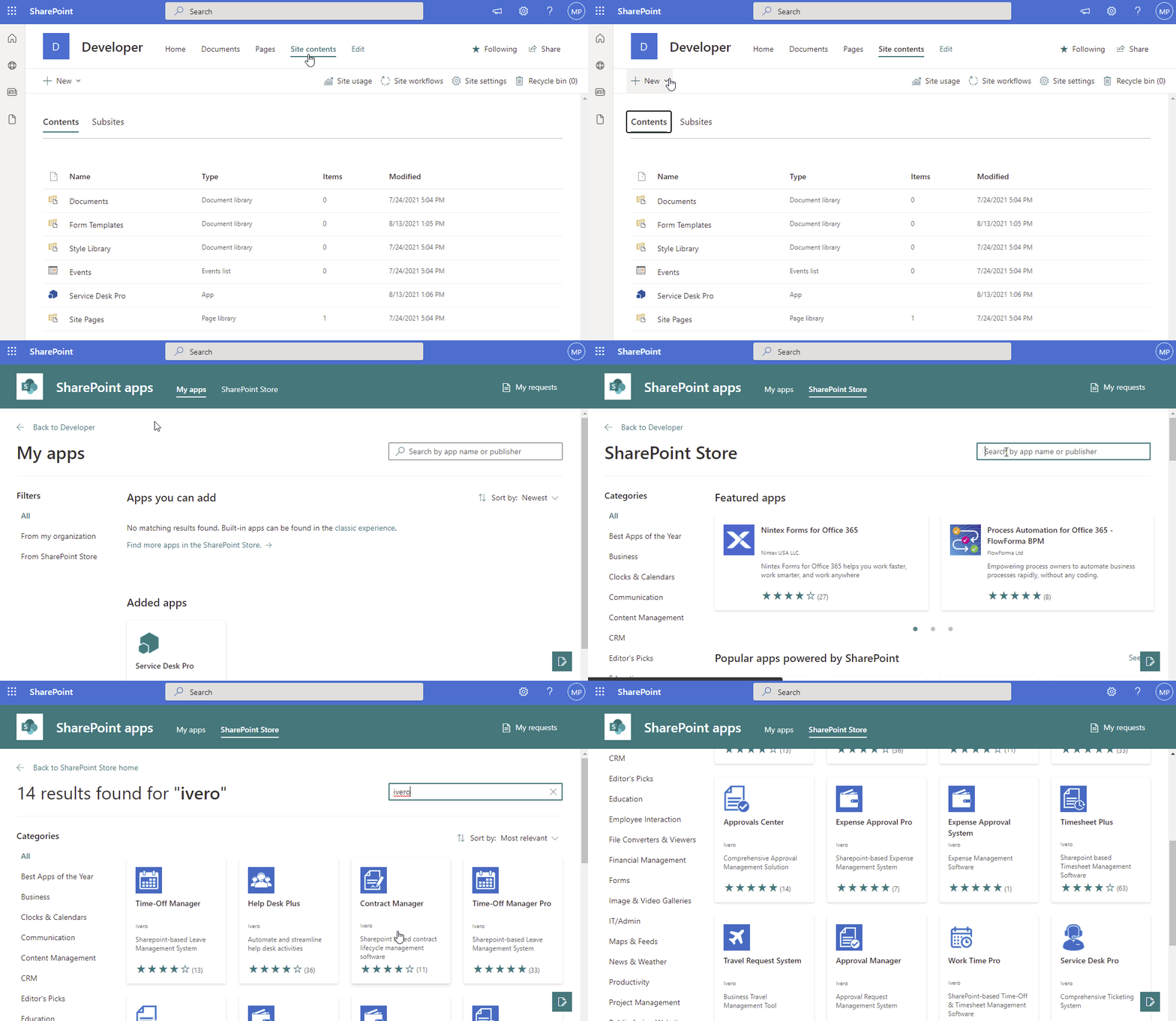
You can download fully functional trial version from the SharePoint Store as is explained on below animation.
If you wrote the "ivero" phrase in the search box, you will find all of our apps.
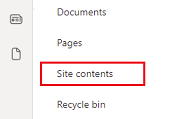
1. Open SharePoint Site where the app is installed and click on link "Site Contents" (might be located in the left or top SharePoint menu)
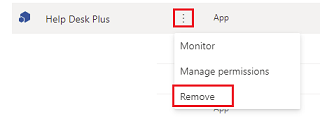
2. Click three dots near the app icon and select the option "Remove" from the menu
The uninstallation process usually takes 2-4 minutes.
1. Open SharePoint Site where the app is installed and click on link "Site Contents" (might be located in the left or top SharePoint menu)
2. Click three dots near the app icon and select the option "DETAILS" from the menu
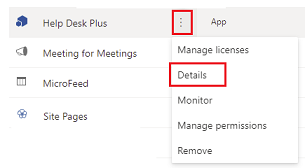
3. Click "GET IT" button
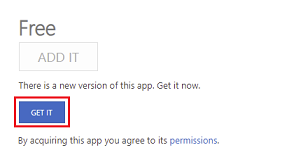
4. Click "Trust It"
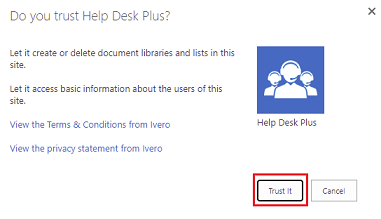
The update process usually takes 2-4 minutes, is always free of charge, and doesn't affect app data.
Notices:
1) If the button "GET IT" is not available, please recover the license, it's described in this FAQ, the question "I want to update an app but the "GET IT" button is not available"
2) If you see the "RENEW" button instead of the "GET IT" button and message "Sorry for the hassle, we hit a problem. Click to recover your license" you need to perform license recovery and afterward update app again.
Process of recovering license is related to "internal" SharePoint Store licenses (it's not related to the IVERO licenses). During app installation, SharePoint Store grants a special license which is used to update apps. This license expires after 1 year and needs to be refreshed.
1. Click button "RENEW"
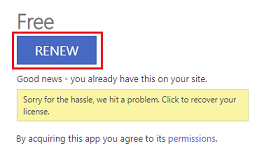
3. Click button "Continue"
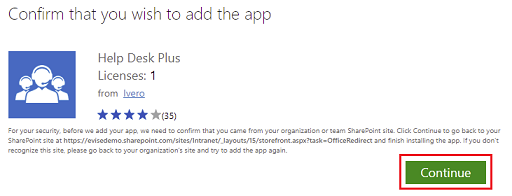
4. Click button "Purchase"
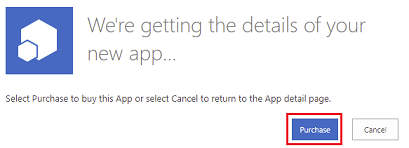
Update or license renewal is always free of charge (you won't be charged when you click on Purchase button)
3) If the above solutions won't help and you still cannot update the app, please make sure that you are using an account with the "SharePoint Administrator" role to update the app, but without the "Global Administrator" role, which is not allowed to install apps due to security reasons.